
Reach Mail
The mail app for trade businesses. Every message lands in the right place the moment it arrives, and every job is tracked from the first email to done.
- Type
- Desktop mail app
- Runs on
- Windows 10 and 11 (64-bit)
- Gmail, Hover and other IMAP mail
- Updates
- Installs them by itself
- Made by
- Reach Mail, a Ferry Reach company
Built for the way a trade office gets mail
A job request, a supplier's statement, a customer chasing a quote and a sale on drill bits all arrive in the same inbox. Reach Mail sorts them as they come in, so the work that pays the bills is never buried under the rest.
- Six work lanes. Jobs, Quotes, Invoices, Suppliers, People and Updates, each with its own count. Move a message to the right lane once and Reach Mail learns from it.
- All your accounts in one inbox. Add the office address, your own and the accounts address, and read them together or one at a time.
- Search that is instant. Find a customer, an invoice number or a supplier's order in a keystroke, even offline.
- New mail straight away. Messages arrive as they are sent, with no refresh button to press.
- Safer to open. Email is shown with scripts switched off and remote images blocked until you allow a sender, which stops tracking pixels. Links that say one site but go to another get a warning, and attached programs can be saved but not run from the app.
- Make it yours. Rename, recolour, reorder or add lanes with your own rules, pick the row size, reading pane and text size, and set your own keyboard shortcuts.
- Undo send for the message you sent a second too soon.
From the first email to a finished job
Mail is where the work starts, so Reach Mail keeps track of the work too.
- Job cards. Open a job request and Reach Mail picks out the details of the job for you. It does this on your PC, with no AI key needed.
- A jobs board. Every job moves from New to Done in one view, and the whole list exports to a spreadsheet.
- Send to the tools you already use. Forward a job by email to your job-management system, or send it to an automation tool through a signed webhook.
- Into your calendar. Turn a site visit into a calendar event in a click.
- Nothing slips. Ask to be reminded if a customer doesn't reply, or snooze a message until you can deal with it.
- Quick replies. Save the answers you send every week as templates.
- Knows your trade. Tell Reach Mail what work you do and it sorts your mail better.
What it looks like
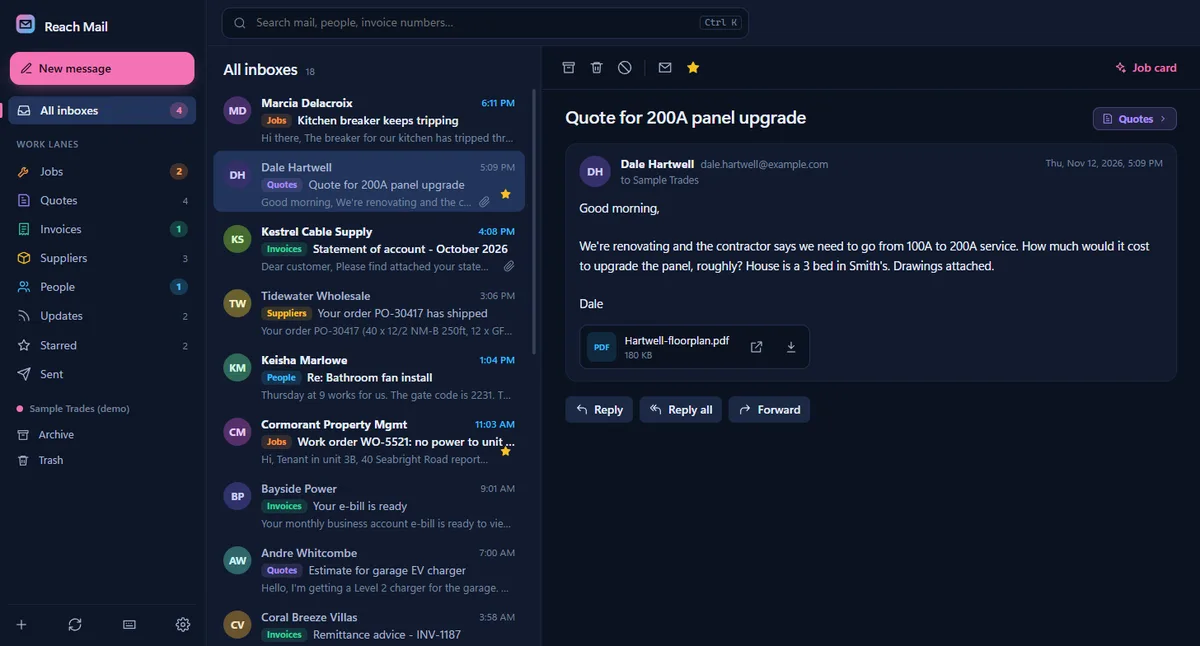
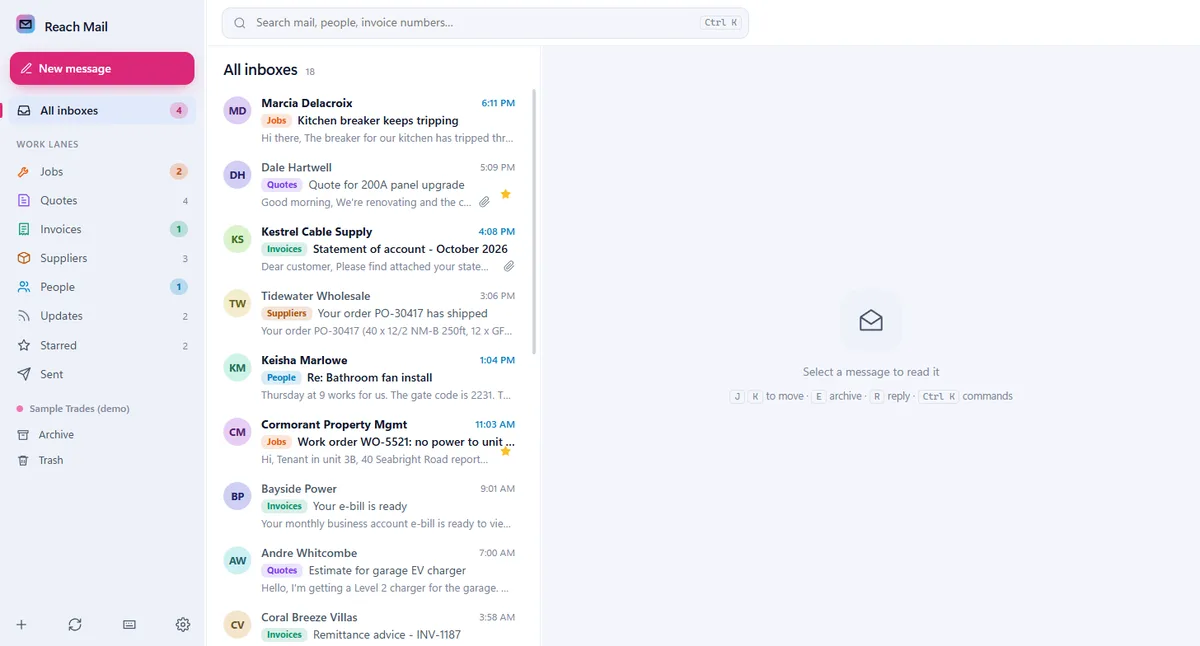
Both screens show a sample mailbox. The names and messages in it are made up.
Your mail stays yours
- No server in the middle. Reach Mail connects straight to your mail provider. Your mail is not copied to Ferry Reach or anyone else, unless you send a job somewhere yourself.
- Kept on your PC. Messages are stored on the computer you install it on, and passwords are held in Windows Credential Manager, never in a plain file.
- Sorting happens on your PC. The lanes are decided by rules on your own machine, with no internet service involved.
- AI only if you switch it on. Job cards are made on your PC without AI. Optional AI features, such as reply drafts, stay off until you add your own AI key, and when you use one, the message you ask about is sent to that AI service.
- Updates are signed. Each install checks for a new version every few hours and updates itself, and it refuses any update that is not signed by us.
Which mail it works with
Today: Gmail (with a Google app password), Hover, iCloud and any mailbox that offers IMAP, including most business email on your own domain. Reach Mail fills in the server settings for common providers.
Coming next: one-click sign-in for Google and Microsoft 365 accounts. Until then, Microsoft 365 and Outlook.com mailboxes are not supported yet.
How to install
- Download the installer with the button above. It is one small setup file, always the newest version.
- Open it. Windows may show a blue box saying "Windows protected your PC". Click More info, then Run anyway.
- Follow the installer. If your PC is missing the Microsoft WebView2 component, the installer fetches it, so stay connected to the internet.
- Add your first account and Reach Mail starts sorting.
Why Windows shows a warning. We have not yet bought the code-signing certificate that tells Windows who published an app, so for now it shows Reach Mail as coming from an "unknown publisher". The installer is the same file we publish on GitHub, and you can check it with the fingerprint below. The warning goes away once we sign the app.
Check your download
To be sure the file is ours and arrived intact, compare its SHA-256 fingerprint with the one we publish. In PowerShell, in the folder you saved it to, run:
Get-FileHash .\ReachMail-*-setup.exeFor the newest version, the hash it prints should be:
Every version, its notes and its fingerprint are listed on the Reach Mail releases page.
Setting it up for a whole office?
We can install Reach Mail on your team's computers, connect every mailbox and tune the lanes to the way your business works.